
Your router’s IP address is the gateway to managing your home network. Whether you need to change your WiFi password, set up port forwarding for gaming, or troubleshoot connectivity issues, knowing how to find your router IP address is essential.
This tutorial walks you through multiple methods to locate your router’s IP on any device, plus explains what these numbers mean and why they matter.
What is a Router IP Address?
A router IP address is a unique numerical identifier assigned to your router within your local network. Think of it as your router’s street address—it tells devices on your network where to find the router so they can access the internet.
Most home routers use private IP addresses that fall within specific ranges defined by the Internet Assigned Numbers Authority (IANA). The most common router IP addresses you’ll encounter are:
- 192.168.1.1 – Used by Linksys, Netgear, D-Link, and many other brands
- 192.168.0.1 – Common with TP-Link and some cable modems
- 10.0.0.1 – Often used by Xfinity and Comcast routers
- 192.168.1.254 – Frequently assigned to Verizon Fios equipment
These addresses are also called default gateway addresses because they serve as the gateway between your local network and the internet.
How to Find Your Router IP on Windows
Finding your router IP address on Windows takes just a few clicks. Here are two reliable methods:
Method 1: Using Command Prompt
The Command Prompt provides the fastest way to check your router IP:
- Press Windows Key + R to open the Run dialog
- Type
cmdand press Enter - In the Command Prompt window, type
ipconfigand press Enter - Look for the “Default Gateway” entry under your active network connection
- The number listed (like 192.168.1.1) is your router’s IP address
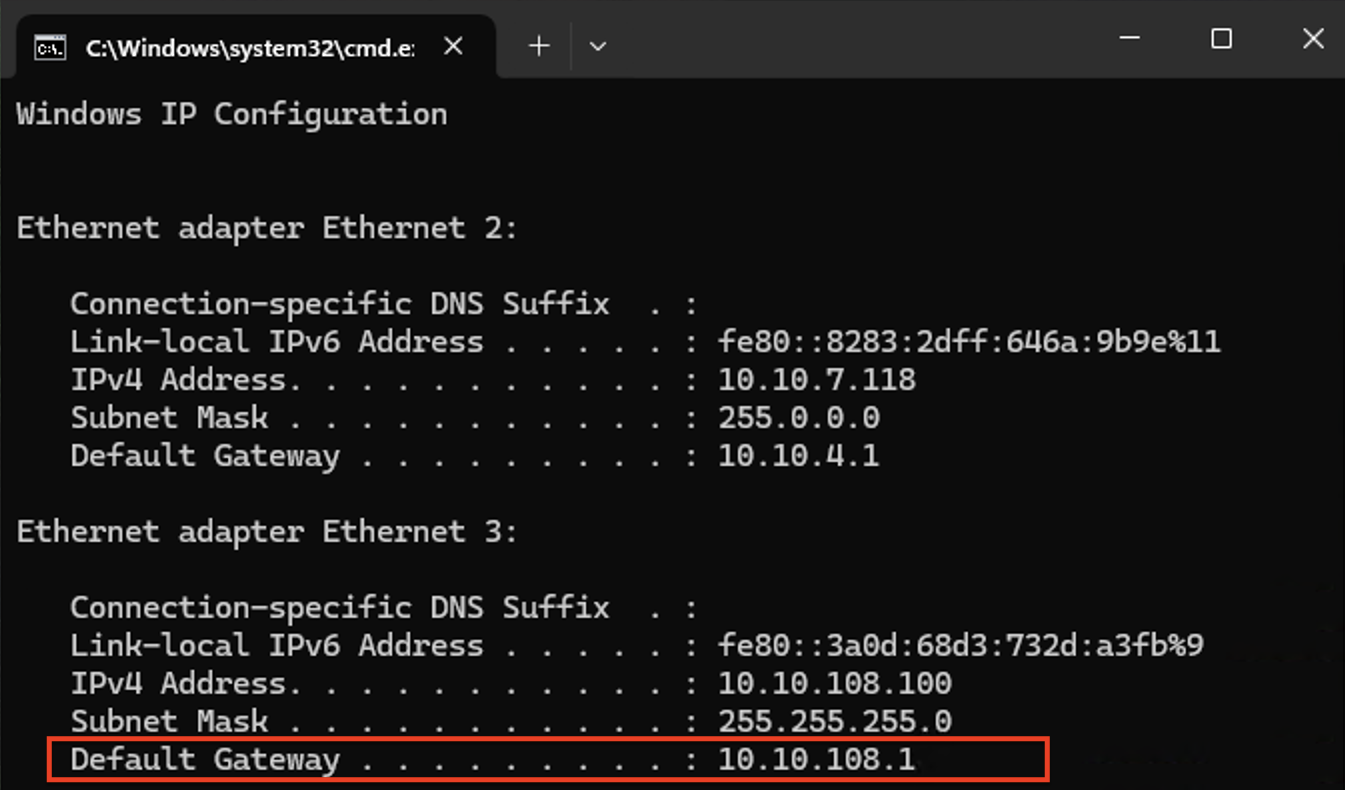
Pro tip: If you see multiple network adapters listed, find the one labeled “Ethernet adapter” if you’re using a wired connection, or “Wireless LAN adapter” for WiFi connections.
Method 2: Through Network Settings
If you prefer a graphical interface:
- Click the Start menu and go to Settings (gear icon)
- Select Network & Internet
- Click on Status in the left sidebar
- Scroll down and click View your network properties
- Find your active connection and look for “Default gateway”
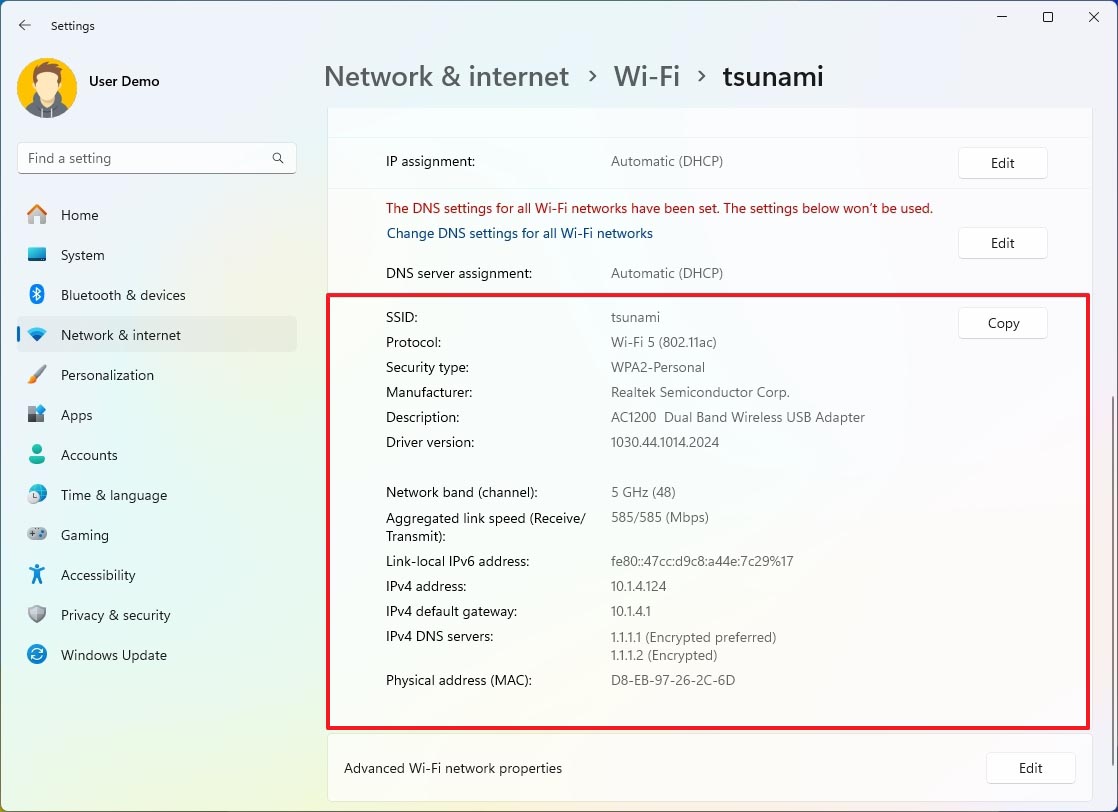
The IP address shown next to Default Gateway is what you need to access your router settings.
How to Find Your Router IP on Mac
Mac users have equally straightforward options:
Using System Preferences
- Click the Apple menu in the top-left corner
- Select System Preferences (or System Settings on newer macOS versions)
- Click on Network
- Select your active connection (WiFi or Ethernet) from the left panel
- Click the Advanced button
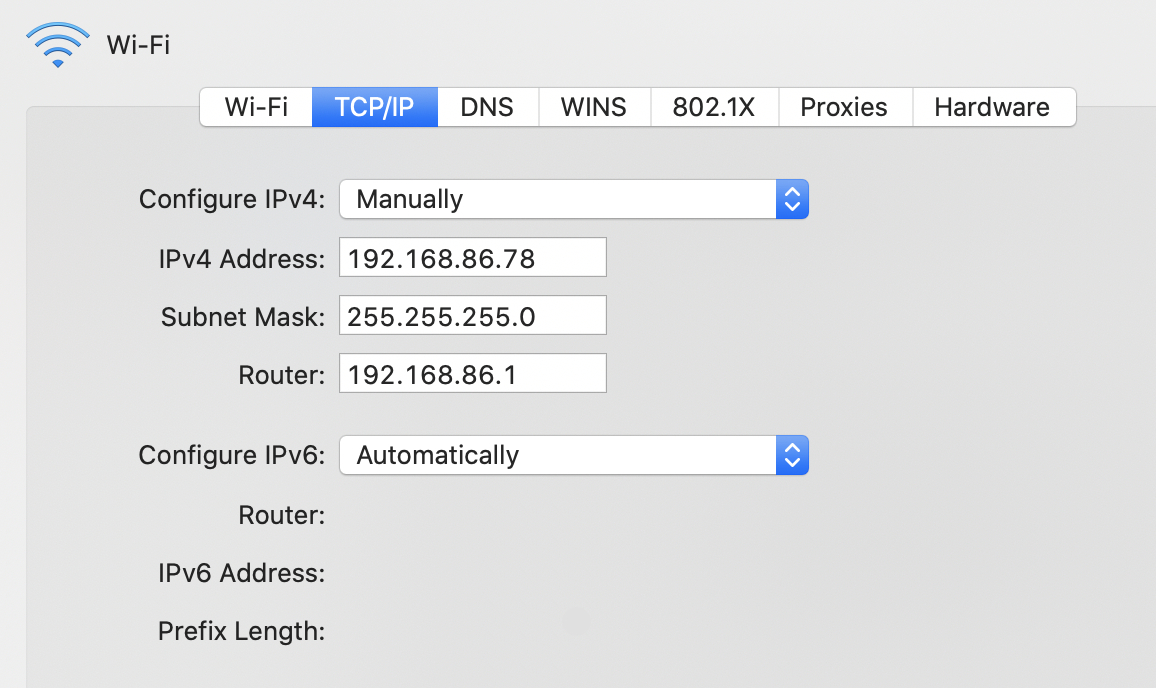
- Go to the TCP/IP tab
- Your router’s IP address appears next to “Router”
Using Terminal
For those comfortable with command-line tools:
- Open Terminal (found in Applications > Utilities)
- Type
netstat -nr | grep defaultand press Enter - The IP address in the output is your router’s IP
This method works across all macOS versions and provides the same information you’d see in System Preferences.
Finding Router IP on iPhone or iPad
Mobile devices make it simple to find your router IP address:
- Open the Settings app
- Tap Wi-Fi
- Tap the (i) icon next to your connected network name
- Scroll down to the “IPV4 ADDRESS” section
- The number next to Router is your router’s IP address
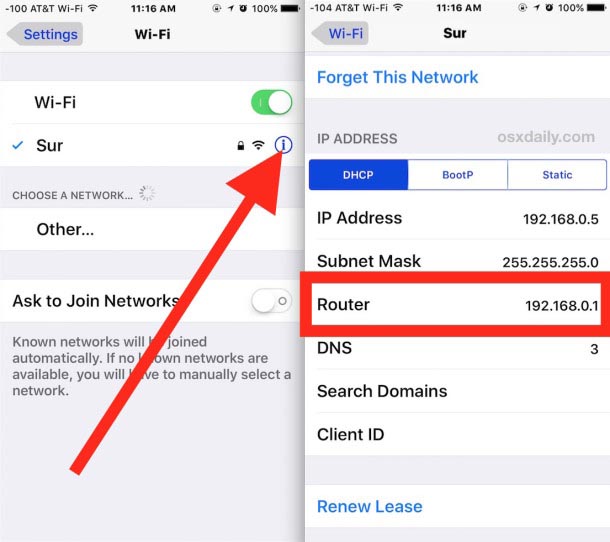
You’ll also see your iPhone’s own IP address in this menu, which is different from your router’s IP. Make sure you’re looking at the Router field, not the IP Address field.
How to Check Router IP on Android
Android’s interface varies slightly between manufacturers, but the general process remains consistent:
- Open Settings
- Tap Network & Internet (may be called Connections on Samsung devices)
- Tap Wi-Fi
- Tap on your connected network name
- Look for Gateway or Router in the network details
- This IP address is your router’s address
Some Android versions hide this information by default. If you don’t see the gateway, tap Advanced or Manage network settings to reveal additional details.
Finding Your Router IP on Linux
Linux distributions offer several methods to locate your router IP:
Using Terminal Commands
Open a terminal and try one of these commands:
Option 1: ip route | grep default
Option 2: route -n
Option 3: nmcli dev show
The default gateway listed in the output is your router’s IP address.
Through the Network Manager GUI
If you’re using a desktop environment with Network Manager:
- Click the network icon in your system tray
- Select Connection Information or Network Settings
- Look for “Default Route” or “Gateway”
What If None of These Methods Work?
Sometimes the standard methods don’t reveal your router IP. Here are backup approaches:
Check the router label: Most routers have a sticker on the bottom or back showing the default IP address, username, and password. Common addresses include 192.168.1.1, 192.168.0.1, or 10.0.0.1.
Review your router’s manual: The documentation that came with your router lists the default IP address. You can usually find PDF versions on the manufacturer’s website if you’ve lost the physical manual.
Try common addresses: If you know your router brand, you can try these typical defaults:
- Netgear: Usually 192.168.1.1 or routerlogin.net
- TP-Link: Often 192.168.0.1 or tplinkwifi.net
- Asus: Typically 192.168.1.1 or router.asus.com
- Linksys: Usually 192.168.1.1 or myrouter.local
Contact your ISP: If you’re using equipment provided by your internet service provider, their support team can tell you the router IP address and login credentials.
Why Do You Need Your Router’s IP Address?
Understanding how to find your router IP opens up several important capabilities:
Changing network settings: You’ll need the IP to log into your router and modify WiFi names, passwords, or security settings.
Troubleshooting connectivity: When your internet acts up, accessing router settings helps identify configuration issues or interference problems.
Port forwarding: Gamers and remote access users need router access to open specific ports for applications or servers.
Security management: Regular router access lets you update firmware, change default passwords, and monitor connected devices.
Guest network setup: Creating separate networks for visitors requires router configuration through the IP address.
For detailed guidance on these tasks, check out our guide on how to log into your router and change settings.
Understanding Router IP vs. Public IP
It’s important to distinguish between your router’s local IP address and your public IP address:
Router IP (Private): This is the address we’ve been discussing—it only works within your home network. Devices outside your network can’t use it to reach your router.
Public IP (External): Your internet service provider assigns this address to identify your network on the internet. Websites see this IP when you browse online.
To find your public IP, simply search “what is my IP” in any search engine, or visit a site like whatismyipaddress.com. Your public IP address is what the outside world sees, while your router IP is internal.
Common Router IP Addresses by Brand
Different manufacturers prefer specific IP address ranges. Here’s a quick reference:
Xfinity/Comcast: Typically uses 10.0.0.1—learn more in our Xfinity router IP address guide
Spectrum: Usually 192.168.1.1 or 192.168.0.1—see our Spectrum router login guide
Verizon Fios: Often uses 192.168.1.1—covered in our Verizon Fios router guide
AT&T: Commonly 192.168.1.254 or 192.168.1.1—details in our AT&T router IP tutorial
Netgear: Standard 192.168.1.1—see the Netgear router login guide
TP-Link: Usually 192.168.0.1 or 192.168.1.1—covered in our TP-Link router setup
Asus: Typically 192.168.1.1—explained in the Asus router login guide
Troubleshooting: Can’t Access Router IP
If you’ve found your router IP address but can’t access it in a browser, try these solutions:
Verify the correct IP: Double-check that you copied the entire IP address correctly. A single wrong digit makes the address invalid.
Use HTTP, not HTTPS: Type http://192.168.1.1 instead of just the numbers. Some browsers automatically add “https://”, which may not work with older routers.
Clear browser cache: Sometimes cached data interferes with router access. Try opening the IP in an incognito/private browsing window.
Disable VPN: If you’re running a VPN, it might redirect traffic away from your local network. Temporarily disconnect the VPN and try again.
Check physical connections: Make sure your device is actually connected to your router’s network, not a different network or mobile data.
Restart your router: Sometimes a simple reboot clears up access issues. Check our guide on how to restart your router correctly.
Factory reset as last resort: If nothing else works, you may need to reset your router to default settings. Our WiFi router factory reset guide walks through this process.
Router IP Address Security Tips
Once you know how to find and access your router IP, protect it with these security practices:
Change default credentials: The username and password printed on your router are public knowledge. Change them immediately after the first access.
Use strong passwords: Create complex passwords with letters, numbers, and symbols. Avoid common words or personal information.
Update firmware regularly: Router manufacturers release security patches to fix vulnerabilities. Check for updates every few months through your router’s admin panel.
Disable remote access: Unless you specifically need it, turn off remote management features that let people access your router from outside your network.
Enable WPA3 encryption: If your router supports it, WPA3 provides the strongest WiFi security currently available.
For a comprehensive security setup, our tutorial on changing your WiFi router password provides detailed steps.
What Is a Default Gateway?
Throughout this guide, we’ve mentioned “default gateway” alongside router IP address. These terms are functionally identical in home networks—the default gateway is simply the technical name for the router’s IP address that serves as the exit point from your local network to the internet.
When your computer needs to access a website, it sends data to the default gateway (your router), which then forwards that data to the appropriate destination on the internet. Understanding this relationship helps clarify why the terms are used interchangeably.
Frequently Asked Questions
Can my router IP address change?
Yes, though it rarely happens automatically. Your router’s IP can change if you reset the device to factory settings, manually reconfigure it, or if your ISP pushes a firmware update that modifies settings. Most routers maintain the same IP indefinitely unless deliberately changed.
Is my router IP the same as my modem IP?
Not necessarily. If you have separate devices—a modem that connects to your ISP and a router that creates your WiFi network—each has its own IP address. However, many people now use combined modem-router units where one device handles both functions. Learn more about the difference in our modem vs. router guide.
Can I change my router’s IP address?
Absolutely. You can assign a different IP address to your router through its admin panel, as long as it remains within private IP ranges (192.168.x.x, 10.x.x.x, or 172.16.x.x to 172.31.x.x). Some users do this for organizational purposes or to avoid conflicts with network equipment.
Why do I have multiple default gateways?
If your device shows several default gateways, you likely have multiple network adapters (Ethernet, WiFi, VPN, virtual machines). Only the gateway for your active internet connection matters. The others correspond to inactive or virtual network interfaces.
Conclusion
Finding your router IP address is a fundamental skill for managing your home network. Whether you’re using Windows, Mac, iOS, Android, or Linux, the process takes just a minute once you know where to look.
Remember these key points:
- Your router IP is usually 192.168.1.1, 192.168.0.1, or 10.0.0.1
- The “Default Gateway” in network settings is your router IP
- You need this address to access router settings and make configuration changes
- Router IP (private) and public IP are different things
Now that you can locate your router’s IP address, you’re ready to access advanced settings, improve security, and troubleshoot network issues effectively. The next logical step is learning how to log into your router and what settings you can customize.
For quick reference on specific IP addresses, browse our comprehensive list of router default IP addresses to find information about virtually any router brand or model.