
M1login.net serves as the admin interface for NETGEAR Mobile Hotspot devices to modify Wi-Fi password, Network Name (SSID), and configuration settings at http://m1login.net.
How to login to NETGEAR Mobile Hotspot?
- Open a web browser and enter http://m1login.net in the address bar.
- Enter the Admin Password and click Sign In.

- You will be logged into the Mobile Hotspot’s Web UI interface.
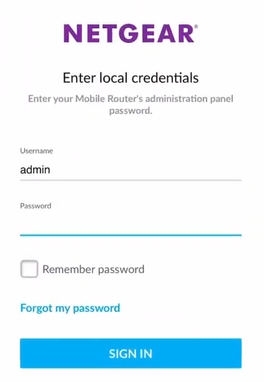
Note: The default Admin Password is password. Check the label under the battery for the initial admin password information.
How to change NETGEAR Wi-Fi Network Name and Password?
- Log into the device user interface using the steps above.
- Select SETTINGS at the top of the page.
- Click Setup > Wireless.
- Enter the Wi-Fi Network Name in the Wi-Fi Name (SSID) field.
- Enter the Wi-Fi Password in the Wi-Fi Password field.
- Click Apply > Continue to save changes.
Troubleshooting M1login.net Access Issues
If you cannot access m1login.net, try these solutions:
- Ensure your device is connected to the NETGEAR Mobile Hotspot’s Wi-Fi network.
- Type exactly “m1login.net” without “www” or “https” prefixes.
- Delete browsing data and cookies, then try again.
- Test with Chrome, Firefox, or Safari if one doesn’t work.
- Ensure the device is powered on and functioning properly.
- Try accessing 192.168.1.1 directly if m1login.net fails.